 EzSwitch
- Layout SwitchRussian – PC ↔ ABC
- Text TransformationDouble Left Shift
- Word SubstitutionsFor all configured pairs
EzSwitch for Mac
The right language. One tap away.
One Command key for each language. Double Shift to fix what you just typed. A little menu bar app that keeps up with your words.
Free & open source · macOS 14+ · Version 1.2.0
Try it on your keyboard: tap left or right ⌘ on its own and watch the menu bar.
No keyboard at hand? Tap the keys.
Small gestures. Less friction.
Switch languages and fix a word without lifting your hands from the keyboard.
Two keys. Two languages.
Tap left Command for one layout, right Command for the other. Prefer Option? Use that instead. Your usual shortcuts keep working.
Wrong layout? Keep the word.
Double-tap Shift or Option to convert selected text or the last word. You can switch the active layout along with it.
More than English and Russian.
Choose the layouts you actually use. With three or more, text correction can cycle through your main pair and back to the original.
Your keyboard. Your rules.
Generate character mappings from installed macOS layouts, then adjust individual keys. Test both directions before using them.
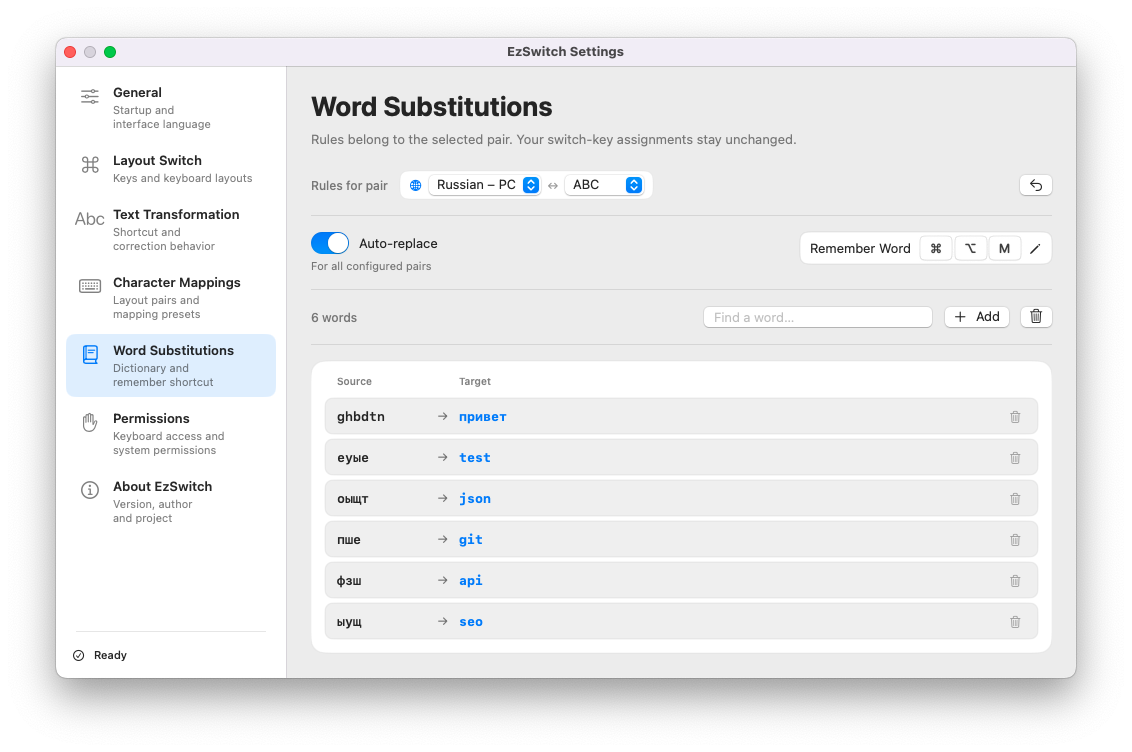
Teach it the words you mistype.
Save a substitution with a shortcut. Next time, the word is replaced when you finish typing it, with its case preserved.
A quiet place in your menu bar.
Quick switches up top, all settings in one window. Pause for the current session without losing your preferences.
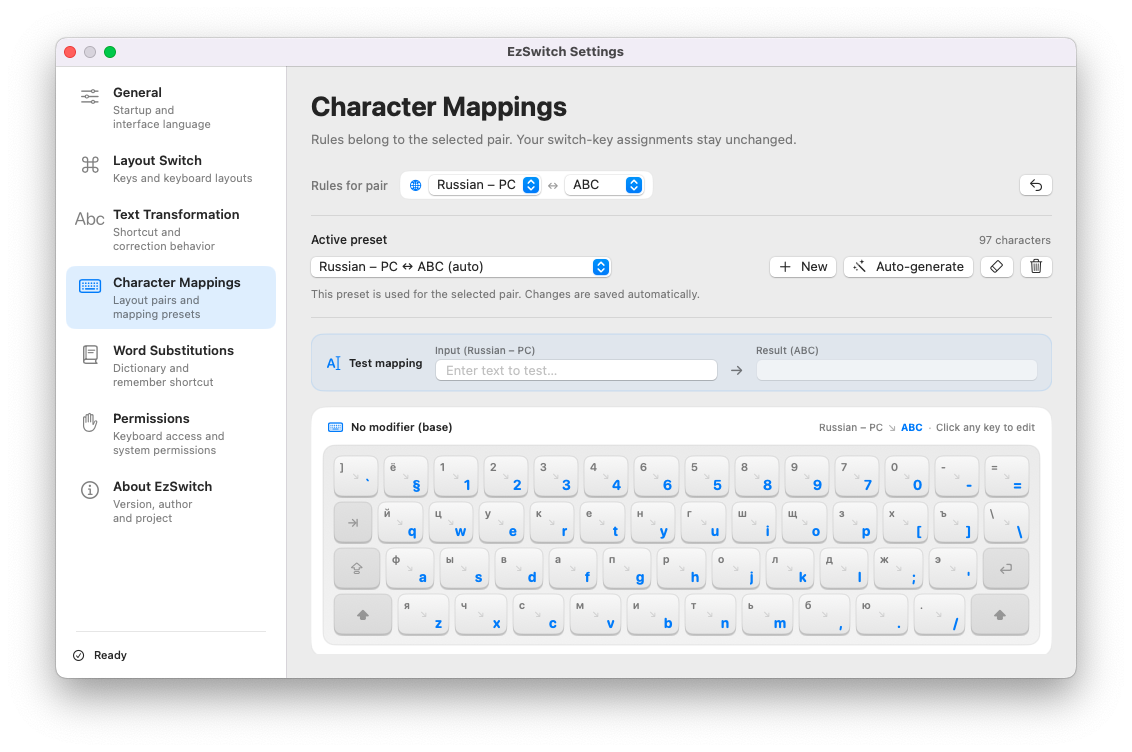
Try Double Shift right here.
Type a word in the wrong layout, then tap Shift or Option twice. This is the same character mapping the app uses for Russian – PC and ABC.
EzSwitch speaks eight languages.
The interface is fully translated and follows the language of your Mac.
- English
- Русский
- Українська
- עברית
- Deutsch
- Français
- Español
- Polski
A little setup. Then just type.
Install once, grant keyboard permissions, and choose your two layouts.
Move it to Applications
Get the DMG or ZIP from GitHub Releases and move EzSwitch.app into your Applications folder.
Allow keyboard access
In System Settings → Privacy & Security, enable Input Monitoring and Accessibility for EzSwitch, then relaunch it.
Pick your layouts
Open Settings → Layout Switch. Assign a language to each side of Command or Option and try your first tap.
If macOS blocks the first launch
A build without Apple notarization may trigger a macOS warning. After attempting to open EzSwitch, go to System Settings → Privacy & Security → Open Anyway. Only proceed if you trust the downloaded build.
Let your fingers do the switching.
EzSwitch for macOS 14 and later. Free to use, with source code you can read and change.
Version 1.2.0 · Installers and release notes live on GitHub Releases. · MIT License
Before your first tap.
Which macOS versions are supported?
EzSwitch runs on macOS 14 Sonoma and later. Check the release notes for the requirements of the build you download.
Will it interfere with Command-C and Command-V?
Layout switching responds to a single tap on a modifier. Holding Command while pressing another key, such as C or V, does not trigger a layout switch. You can also use Option as the switching key.
Does it automatically detect every word's language?
You explicitly choose the layout with a tap. Double Shift or Option corrects text on demand. Automatic replacement is based on words you have added to your substitution dictionary; it is not a general-purpose language prediction system.
Why does it need two macOS permissions?
Input Monitoring lets EzSwitch recognize keyboard gestures and word boundaries. Accessibility lets it select and replace text in other applications. The Permissions section in EzSwitch shows each permission separately and links to the corresponding system settings.
Where are my mappings and substitutions stored?
Character presets and word substitutions are saved on your Mac in ~/Library/Application Support/EzSwitch/. Preferences are stored in macOS UserDefaults.
Can I use more than two languages?
The switching keys have a main pair of layouts. Text transformation also tracks the layout you came from: when typing in a third layout, repeated corrections can cycle through the main pair and restore the original text. Character mappings can be customized for your layout pairs.