Vector Painter: Trace Raster Icons into Editable SVG
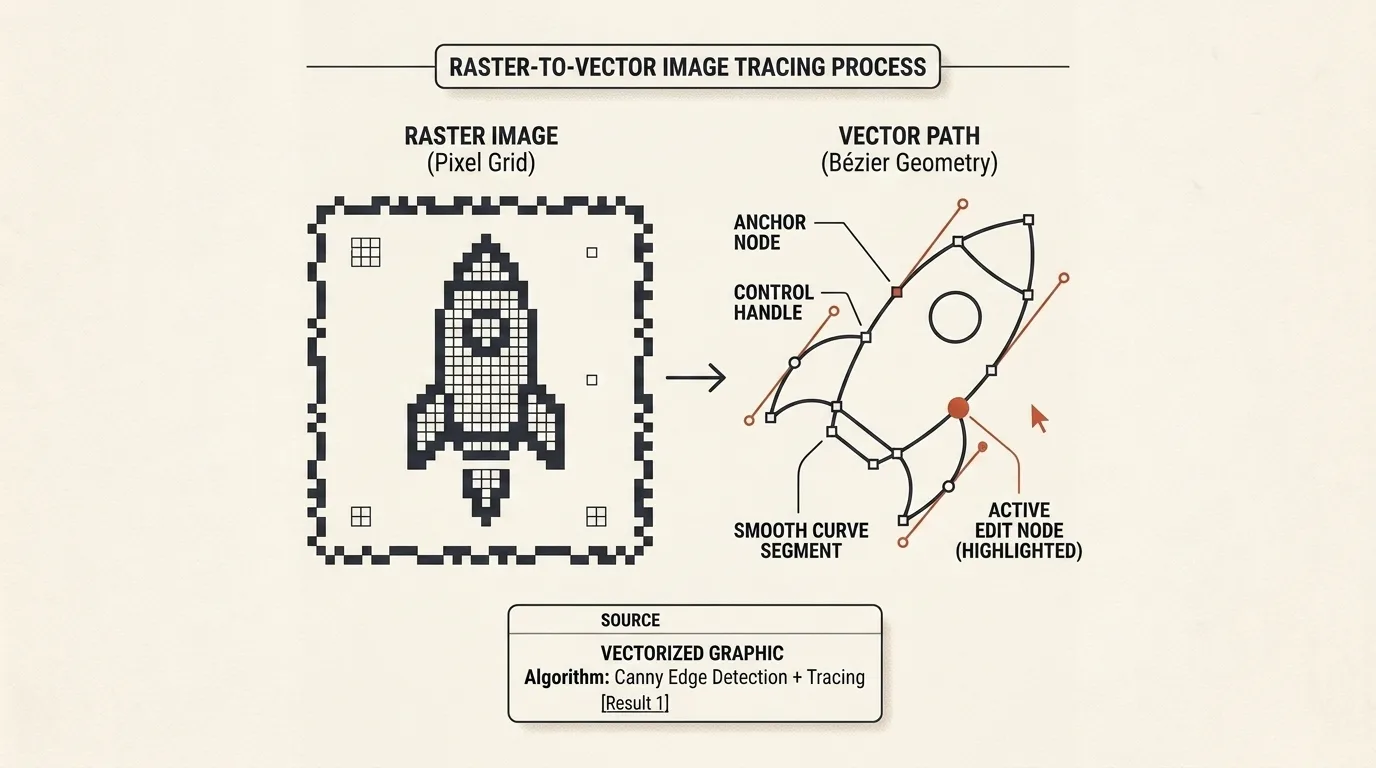
Opening heavy desktop software like Illustrator, Figma, or Inkscape just to fix a single small icon is often overkill. When you need to convert a pixelated PNG logo into a clean vector, adjust slightly off Bézier handles, or recolor an icon before dropping it into your code, you want an instant tool right inside your web browser.
Automatic raster conversion rarely yields perfect results on the first attempt. Tracing creates a foundation, but the geometry still demands smooth handles, proper node types, noise cleanup, and precise palette control.
What is Vector Painter
Vector Painter is a local browser-based vector tracer and path editor. It solves three primary developer tasks:
- Automated Raster Tracing: Converts PNG, WebP, and JPEG images into clean vector
pathelements. - Manual Geometry Editing: Fine-tunes anchor points, Bézier control handles, scaling, and object transformations.
- Vector Creation from Scratch: Builds icons and illustrations using the Pen tool (
P) and shape primitives.
All operations execute 100% locally. The editor never uploads your files to external servers and automatically saves your working session in your browser's local storage.
Importing Images, SVG, and Code
The File section supports multiple convenient input methods:
- Image — Opens raster files (PNG, WebP, JPEG) for automated vector tracing or reference overlay.
- SVG — Loads existing SVG files and converts visible vector geometry into editable objects.
- From text — Accepts raw SVG code, XML fragments, or path data attribute strings starting with
d="M...".
Files can also be dropped directly onto the canvas area via drag-and-drop. Re-importing asks for confirmation, and any accidental replacement can be reversed using Undo.
How Raster-to-Vector Tracing Works
When you load a raster image, enabling the Trace panel triggers the vectorization pipeline:
- Color Quantization (1–12 Colors): Set the target color count. The engine automatically clusters close color values.
- Background Separation: The Separate background option detects background colors (like white or transparent) so palette budgets aren't wasted on outer margins.
- Tracing Mode Selection:
- Filled shapes — Builds outline contours around solid silhouettes and logo shapes.
- Centerlines — Analyzes stroke thickness and generates thin central vector paths, ideal for line art and technical sketches.
- Auto — Automatically selects the optimal algorithm based on image contrast and structure.
- Contour Fine-Tuning:
- Smoothness — Controls the smoothing of stair-stepped pixel edges.
- Corner threshold — Preserves sharp corners and prevents unwanted rounding at sharp angles.
- Max stroke width (for Centerlines) — Restricts maximum recognized stroke thickness.
- Min area filter — Filters out tiny pixel noise and unwanted specks.
Results instantly render as vector objects on your canvas, ready for further manual editing.
Vector Editor and Bézier Curves
After tracing or when drawing from scratch, you have a complete set of vector editing tools:
- Select (
V/S) — Selects and moves shapes. Transforms objects, resizes via bounding box handles, and rotates shapes. - Edit nodes (
A/N) — Direct path node editing tool:- Dragging a point shifts its canvas position.
Alt+ dragging a point pulls out symmetrical Bézier control handles.Alt+ dragging an individual handle breaks handle symmetry to create sharp corner nodes.- Clicking a path segment adds a new anchor point.
- Pressing
Delete/Backspaceon a selected node (or double-clicking a node) deletes it from the path string — automatically reconnecting adjacent nodes with a smooth recalculated Bézier join without breaking shape continuity.
- Pen (
P) — Classic Pen tool for custom vector paths:- Single click creates a sharp corner node.
- Click-and-drag creates a smooth node with Bézier handles.
- Clicking the initial starting point closes the path.
- Double-clicking or pressing
Enterfinishes an open path.
- Shape Primitives: Rectangle Rect (
R), Rounded Rectangle Roundrect (U), Circle Circle (C), Ellipse Ellipse (E), and Straight Line Line (L) (holdingShiftsnaps line angles to 45° increments). - Eyedropper (
I) — Picks colors from both reference raster images and existing vector shapes.
Layer Ordering and Object Manipulation
Vector objects are managed within an object stack. You can easily manage Z-index layering:
- Bring Forward (
Ctrl/Cmd+]) — Move selected object up one layer. - Send Backward (
Ctrl/Cmd+[) — Move selected object down one layer. - Bring to Front (
Ctrl/Cmd+Shift+]) — Move selected object to the top of the stack. - Send to Back (
Ctrl/Cmd+Shift+[) — Move selected object to the bottom of the stack. - Duplicate (
Ctrl/Cmd+D) — Clone the selected shape instantly. - Delete (
Delete/Backspace) — Remove the selected object or node.
Brand Colors and One-Click Recoloring
Vector Painter utilizes the unified Brand Palette system:
- Working palette — Automatically extracted from imported images or tracing results.
- Brand colors — Your personal brand palette library, persisted across browser sessions.
You can import presets from built-in design systems, edit hex codes in bulk, or copy color lists to your clipboard. Clicking any palette color with an object selected immediately recolors its fill or stroke.
Preview Backgrounds and Transparency
To evaluate icon contrast across different UI themes, the Preview background section offers multiple background modes:
- Checkered grid (for transparency verification);
- Pure white or light gray;
- Dark gray or pure black;
- Custom color (via color picker or hex input).
Preview backgrounds are strictly for display and are never included in exported SVG or PNG output.
Navigation and Subpixel Reference Alignment
To perfectly align vector paths over reference raster images, the Background adjust panel provides fine controls:
- Offset X & Y — Shift background reference image with 0.25px subpixel precision.
- Scale — Scale reference image from 10% to 300% in 5% increments.
- Navigation & View Shortcuts:
H— Toggle reference image visibility.T— Toggle vector path layer visibility.O— Toggle side-by-side comparison mode between original image and vector overlay.Space+ drag — Pan canvas at high zoom levels.- Mouse wheel — Smooth zoom in/out.
Undo, Redo, and Local Persistence
Every action — tracing, adding shapes, moving Bézier nodes, modifying handles, recoloring, and aligning — is recorded in the Undo (Ctrl/Cmd+Z) / Redo (Ctrl/Cmd+Shift+Z) history stack.
Document state, active paths, raster reference images, selected palettes, and zoom levels automatically persist in localStorage. If your browser tab closes unexpectedly, your work remains safe.
Exporting SVG and PNG
The Export section provides flexible saving options:
- Trim to content — Automatically crops SVG/PNG bounds tightly around visible vector paths.
- Full canvas — Preserves original canvas dimensions and padding margins.
- Formats:
- SVG File — Downloads compact, production-ready SVG files. Adjacent paths combine and coordinate precision is rounded for minimal file size.
- PNG File — Exports raster images with alpha channel transparency and custom DPI scale multipliers (e.g., 2x, 4x, 8x).
- Copy SVG — Copies clean SVG code directly to your clipboard.
- Save current SVG (
Ctrl/Cmd+S) — Directly overwrites the opened SVG file on disk (in browsers supporting File System Access API). - Open in SVG Optimizer — Transfers generated vector code directly into the local SVG Optimizer tool for minification, attribute cleaning, and React/Vue/Data URI code export.
Keyboard Shortcuts
Step-by-Step Workflow: From PNG Raster to Clean SVG
- Load your raster icon via the Image button or drag-and-drop the file into your browser.
- In the Trace panel, set the target color count (e.g., 2 for monochrome logos) and enable Separate background.
- Choose Filled shapes for solid silhouettes or Centerlines for line art.
- Click Trace to inspect the generated vector paths.
- Switch to the Edit nodes (
A) tool, align anchor nodes, and smooth curves using Bézier control handles. - In the Color section, click your brand color to instantly recolor the icon.
- Test icon contrast against dark and light preview backgrounds.
- Export via Trim to content for a compact SVG or send the vector to SVG Optimizer.
Vector Painter solves everyday vector tracing and icon editing tasks in seconds — without desktop software bloat, subscriptions, or uploading private graphics to third-party servers.
Related Tools


Frequently asked questions
What is Vector Painter?
Vector Painter is a browser-based vector editor and automated image tracer. It allows you to convert raster images (PNG, WebP, JPEG) and pixel icons into clean SVG vector paths, edit anchor nodes and Bézier curves, build shapes from scratch, and export production-ready vector graphics — 100% locally in your browser.
Which file formats are supported?
The editor opens raster images (PNG, WebP, JPEG) and SVG files. You can also import raw SVG code, XML fragments, or path data strings (`d="M..."`).
How does raster-to-vector tracing work?
The built-in engine analyzes reference pixels, separates background colors, quantizes 1 to 12 colors, and constructs vector geometry in three modes: Filled shapes, Centerlines (for line art), or Auto.
Can I manually edit Bézier curves, anchor nodes, and delete individual points?
Yes. The Edit nodes tool (`A`) lets you drag anchor points, pull out symmetric control handles with Alt-drag, or break handle symmetry for sharp corner nodes. Deleting nodes via Delete/Backspace or double-click automatically reconnects adjacent points with recalculated smooth Bézier curve joins.
Does Vector Painter support vector shape primitives?
Yes. Beyond freehand Pen drawing (`P`) and auto-tracing, the editor includes Rectangles (`R`), Rounded Rectangles (`U`), Circles (`C`), Ellipses (`E`), and Straight Lines (`L`).
Can I use custom brand color palettes?
Yes. The editor uses the shared Brand Palette system. You can load custom brand colors, edit hex strings, persist them in local storage, and recolor vector shapes in a single click.
Are images uploaded to any server?
No. All importing, vector tracing, node editing, and exporting are processed 100% locally inside your browser. No data ever leaves your device.
What export options are available?
You can export compact SVG files, scaled PNG rasters, copy clean SVG code to your clipboard, overwrite opened SVG files directly (if supported by your browser), or pass vector code directly to the SVG Optimizer tool.

Author
Alex RelFullstack Engineer
In commercial development since 2011 — over 15 years. Author of two SaaS products, TeleGo.io and LingvoHabit.com. The articles here come out of real client and product work.