OG Image Generator: Visual Editor for Open Graph Cards
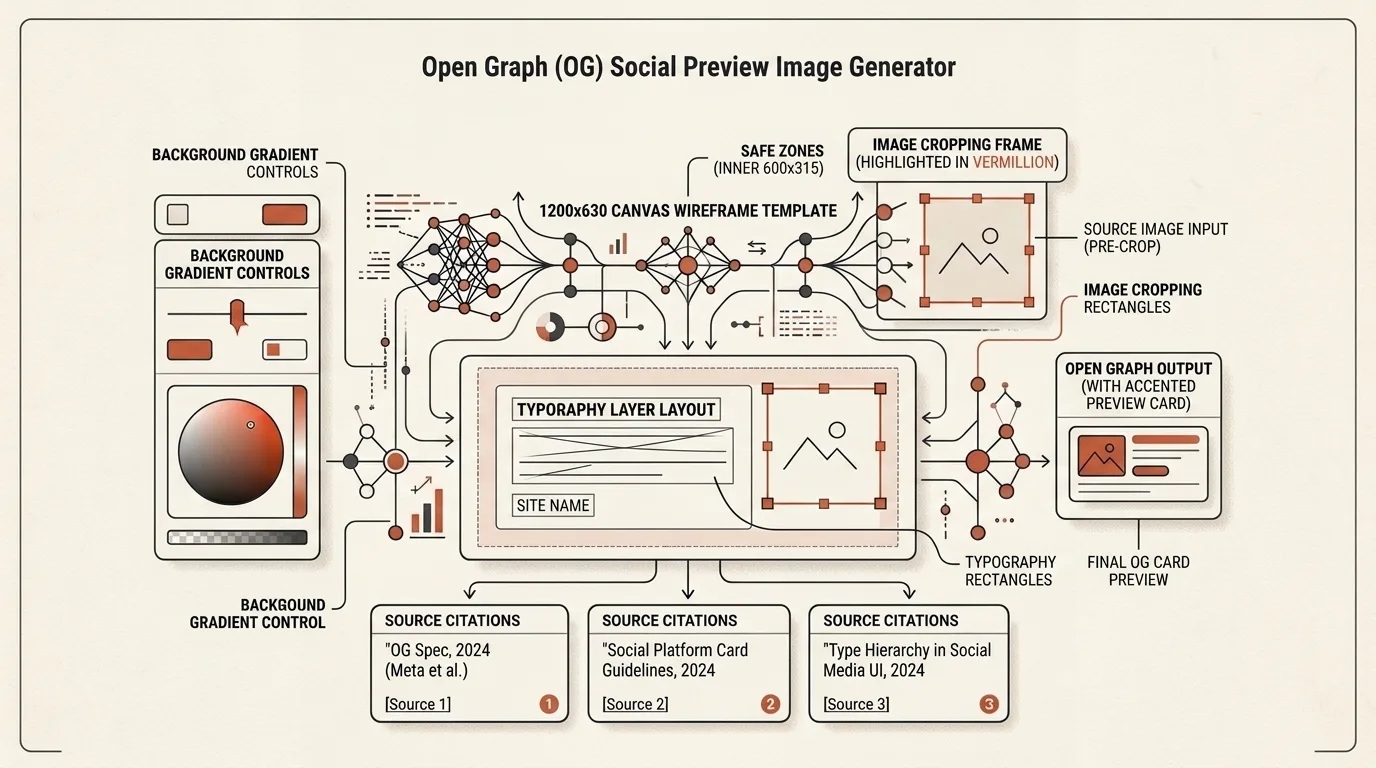
The Open Graph image is the only part of a page most people see before deciding whether to click. It shows up in group chats, Slack channels, LinkedIn feeds and X timelines, and in every one of those places it is competing with everything else on screen.
The specification is loose. The practical constraints are not.
What the tool does
The OG Image Generator began as a 1200×630 image generator, but it has grown into a compact visual editor. There is no single rigid template where only the headline and two colours can change. You build a composition from independent elements and edit the result exactly where you see it.
The editor covers the complete path from an idea to a publishable file:
- create Open Graph, Instagram, Story, cover and custom-size images;
- move, resize and rotate elements directly on the canvas;
- keep several translations in one composition, including LTR and RTL;
- store named cards and the current draft locally in the browser;
- move one template or the complete library through JSON;
- export PNG, JPEG and WebP at 1× or 2×;
- generate meta tags and preview the resulting social card.
Why this is a visual editor rather than a settings form
Most work happens on the canvas. Select an object and drag it with a mouse or pointer, pull its handles to resize it, use the separate rotation control, and double-click text to edit it in place. Exact coordinates, width, height, opacity and rotation remain available in the inspector, but those controls support direct manipulation instead of replacing it.
The editor includes the composition tools expected from a small design application:
- Snapping and guides. Objects snap to the canvas edges and centre as well as the boundaries of neighbouring elements. A text box can therefore match an image width precisely.
- Alignment and distribution. Multiple selected objects can share a left, right or centre edge and be distributed with equal gaps.
- Layers. Raise or lower an object, hide it temporarily, or lock it against accidental movement.
- Precise nudging. Arrow keys move a selection by one pixel and
Shiftmoves it by ten. Undo and Redo make experimentation safe. - Safe area and Fit zoom. The safe area keeps important copy away from risky edges, while Fit keeps the whole composition visible regardless of window size.
The building blocks
Instead of hundreds of presets, the editor provides a small set of reusable elements:
- Text for headlines, subtitles, site addresses and labels, with optional auto-fit;
- Image and Logo for photos, illustrations and brand marks in PNG, JPEG, WebP or SVG;
- Icon for a standalone built-in or uploaded icon;
- Icon + text for a phone number, address, link or short benefit;
- Icon list for repeatable contacts, services or benefits with drag-and-drop ordering, dividers and configurable icon placement;
- Panel for a solid, gradient or textured region that divides the composition;
- Shape for lines, separators and decoration;
- Button for a CTA or visual link.
That is enough for a simple “logo — headline — subtitle” card and for a split layout with a photo, contact information and a row of benefits. Every block stays independent: duplicate it, attach it to a panel, change its layer order or remove it.
Colour, backgrounds, images and typography
Each document has a role-based palette for the background, panel, accent, primary text and muted text. Elements that use a role update together when the palette changes, while any colour can still be made local when a one-off value is needed.
The canvas and panel backgrounds support solid and gradient fills. Both gradient stops have independent opacity, so a transition can run from transparent into a colour. Dot and grid textures are available, while a background photo adds scale, position, tint colour and tint strength controls.
Uploaded images can be flipped horizontally or vertically, faded and rotated through a continuous 0–359° range. Text controls include size, auto-fit minimum size, weight, alignment, letter spacing, colour and a shadow with independent X/Y offsets, blur and opacity.
The font library covers Latin, Cyrillic and Hebrew with Manrope, Inter, Montserrat, Oswald, Lora, Merriweather, Playfair Display, JetBrains Mono, Rubik, Heebo, Assistant, Noto Sans Hebrew, Frank Ruhl Libre and more. A font can be the default for a language or an override for one specific element.
One composition for English, Russian and Hebrew
Translation should not require manually rebuilding the layout. An OG Image Generator card keeps one element structure with several text versions. Arrange the composition once, switch a language chip and edit only the copy.
Each locale can use explicit LTR, RTL or automatic direction and an appropriate default font. For Hebrew, direction changes both on the rendered canvas and inside the editing input or textarea, so the string starts from the correct side. Icon lists can detect direction per item while keeping icons physically left, right or tied to the text direction.
When a new locale is added, copy from an existing one by filling only empty fields or deliberately overwriting everything after confirmation. During export, Export all languages creates one ready image per locale with shared geometry and the correct copy.
The dimensions that matter
For Open Graph, 1200×630 at a 1.91:1 ratio remains the primary target. Every major platform crops from it, which is why it has become the de facto standard rather than an official one. Below roughly 600×315, platforms may refuse to render a large card and fall back to a small thumbnail.
The same editor is useful beyond OG images. Its presets include:
- Instagram Square — 1080×1080;
- Instagram Portrait — 1080×1350;
- Instagram Landscape — 1080×566;
- Story — 1080×1920;
- Profile cover — 1500×500;
- Wide — 1920×1080;
- Custom — any size from 240 to 4096 pixels on either axis.
When dimensions change, either resize the canvas while leaving elements alone or scale the whole composition. A normal canvas-only resize does not rewrite font sizes: typography remains an intentional setting rather than an accidental side effect of changing format.
Declare the size in your markup as well:
<meta property="og:image" content="https://example.com/og/post.png">
<meta property="og:image:width" content="1200">
<meta property="og:image:height" content="630">
<meta name="twitter:card" content="summary_large_image">
og:image:width and og:image:height let the platform reserve layout space before the image finishes downloading. Without them the card can render in a degraded form on first paint. And without twitter:card set to summary_large_image, X shows the small square card no matter how good your image is.
Repeatability: templates, the local library and JSON
The expensive part is not replacing a headline. It is designing a good system once: spacing, palette, type, logo placement, grid and translation rules. A finished card can therefore be saved to the local library and reused as the starting point for future publications.
Save updates the current card, while Save as new creates an independent copy under a new name. The active draft is autosaved. When another template or a blank document would replace unsaved work, the editor offers to save first, continue without saving or cancel the action.
The library remains in the browser. JSON provides backup and handoff:
- Export JSON saves the current card with its elements, translations, palette and uploaded assets;
- Export all as JSON downloads the whole library;
- Import adds documents as new records and validates their structure before loading them.
This makes it practical to build one branded master template, send it to a translator or colleague, and receive the same composition back without manually recreating coordinates.
Image and meta-tag export
The export modal offers PNG, JPEG or WebP at 1×/2×. Download the active locale, copy the rendered image to the clipboard, or export every locale in one action. Filenames include the card name, locale and final dimensions so variants do not overwrite one another accidentally.
The separate Meta tags & social preview modal connects the design to a page. Choose which text element supplies og:title and og:description, enter the page URL and future absolute image URL, inspect the social preview, and copy the complete Open Graph/Twitter markup.
The editor creates the file but does not upload it to a host. After export, the image still needs a public HTTPS URL and the generated markup must be placed in the page <head>.
Design for the thumbnail, not the mockup
This is where most generated cards fail, and it is a design problem rather than a technical one.
A card looks great at full width on your monitor. In a phone chat window it renders at maybe a third of that. A 40-word title set in a light weight becomes grey mush; a subtitle in 60% opacity disappears entirely.
Practical rules that survive the shrink:
- Titles under ~70 characters. Past that the auto-fit sizing has to shrink the type to keep it on the box, and legibility collapses. If a headline keeps shrinking as you type, that is the signal to cut it.
- Weight over size. A bold 60px title reads better small than a light 80px one.
- High contrast. Mid-grey text on a mid-grey gradient is invisible at thumbnail scale.
- One idea. The card is not a slide. Title, one supporting line, brand — anything more is noise.
Zoom out to 25–50% in the editor before exporting — that is roughly the size a card actually renders at in a phone chat window, and it is a much faster way to catch an illegible title than guessing from the full-size canvas.
Absolute URLs, always
Crawlers ignore relative paths. /og/post.png will silently produce no image; it must be https://example.com/og/post.png. The same applies to og:url.
Two related failure modes worth checking if an image refuses to appear:
- The image is behind a redirect or auth. The URL must return the image bytes directly to an unauthenticated request. A 302 to a CDN sometimes works and sometimes does not, depending on the crawler.
- The file is too large. Keep it comfortably under a few megabytes. A 1200×630 PNG of flat colours and text is typically well under 200 KB, which is one reason canvas-rendered cards beat screenshots.
Unfurl caches are aggressive
Once a platform has scraped your URL, it caches the result — often for days. Replacing the image at the same URL will not update existing previews, and frequently will not update new ones either.
Two ways out: use each platform's own debugger to force a re-scrape, or publish the new image under a different filename and update the meta tag. The second is more reliable and works everywhere at once, which is why versioned filenames are a good habit for pages whose cards change.
Workflow
- Choose the target size: 1200×630 for Open Graph, a social preset or Custom.
- Start from a nearby template or a blank canvas, then establish the palette, background and primary panels.
- Add the logo, image, headline, subtitle and any contact or supporting blocks.
- Build the composition with Snap, guides, alignment and layers; lock finished background elements.
- Write the real headline rather than a placeholder because length affects auto-fit and wrapping.
- Add locales, choose direction and fonts, then replace the copy in each language.
- Zoom out to 25–50% and confirm the card remains readable as a small preview.
- Save the result to the library or export JSON as a portable branded template.
- Download PNG/JPEG/WebP, publish it at an absolute HTTPS URL and copy the meta tags into
<head>. - If it replaces an image at the same address, trigger a re-scrape in the relevant platform debugger.
Text is drawn with the Canvas 2D API. The required webfonts are loaded before export, so the final file matches what the canvas showed rather than silently falling back to a system font. The document, uploaded images and export all stay local: no account or server upload of source assets is required.
Related Tools


Frequently asked questions
What size should an Open Graph image be?
1200×630 pixels, a 1.91:1 ratio. That is what X, LinkedIn, Facebook and Slack all crop from. Going larger wastes bytes and going smaller gets upscaled and looks soft.
Can one card contain several language versions?
Yes. Text for every locale lives inside one composition, so element placement stays shared. The editor changes text and input direction for Hebrew and other RTL languages, and export can download every language version at once.
Which elements can I add to a card?
Text, images, logos, standalone icons, icon-and-text rows, icon lists, panels, shapes and buttons. Elements can be dragged, resized, rotated, aligned, hidden, locked and reordered in the layer stack.
Can I upload an SVG logo or icon?
Yes. The editor accepts SVG as well as PNG, JPEG and WebP for images, logos, canvas backgrounds and custom icons.
How do I move a template to another browser?
Export the current card or the whole local library as JSON, then import that file in another browser. The JSON preserves structure, settings, translations and embedded assets.
Why does my OG image not show up when I share the link?
The most common causes are a relative image URL, an image behind authentication or a redirect, and a stale unfurl cache. Crawlers require an absolute HTTPS URL that returns the image directly.
Do I need both og:image and twitter:image?
Not strictly — X falls back to og:image if twitter:image is absent. But you do need twitter:card set to summary_large_image, otherwise you get the small square card instead of the wide one.
Why does my updated image still show the old version?
Unfurl results are cached aggressively. Use the platform's own debugger to force a re-scrape, or publish the new image at a different filename.
How long should the title on an OG image be?
Under about 70 characters. The image often renders at a third of its size in a phone chat window, so long titles set in light weights turn into unreadable grey blocks — zoom the editor out to 25–50% to check before exporting.
Should og:image:width and og:image:height be declared?
Yes. They let the platform reserve layout space before the image downloads, which avoids a reflow and makes the card render correctly on the first pass.
Is the image uploaded anywhere to be generated?
No. The card is drawn with the Canvas 2D API and PNG, JPEG or WebP output is produced locally, so nothing is sent to a server.
Author
Alex RelFullstack Engineer
In commercial development since 2011 — over 15 years. Author of two SaaS products, TeleGo.io and LingvoHabit.com. The articles here come out of real client and product work.