Code Snapshot: Create Beautiful Code Snippet Images
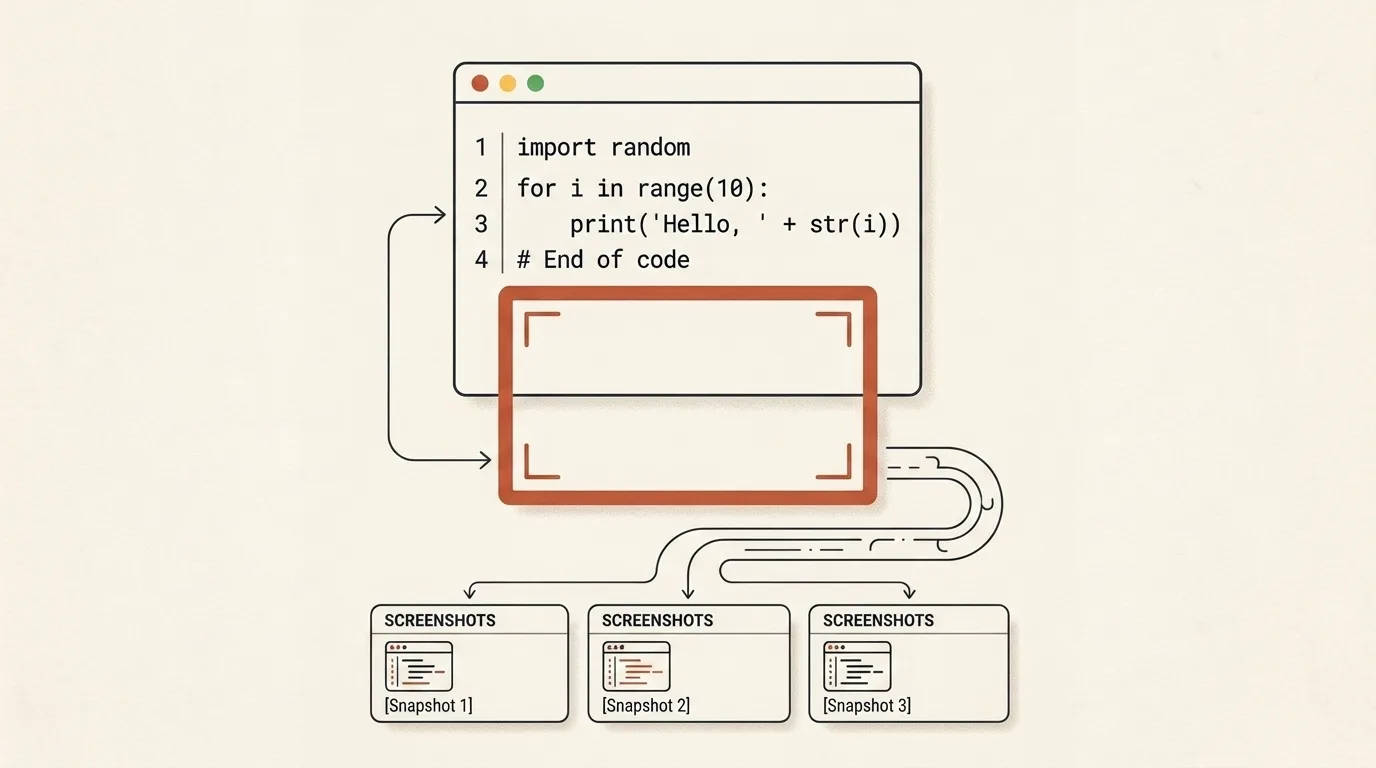
When creating technical posts, documentation, tutorials, or slides, standard screenshots from code editors often look cluttered: IDE sidebars, browser tabs, system cursors, and unantialiased fonts degrade the final presentation.
Creating code snippets manually in graphic design tools is time-consuming. Meanwhile, cloud-based screenshot services frequently require accounts, display ads, or transmit sensitive source code to remote servers.
What is Code Snapshot
Code Snapshot is a browser-based code image generator designed to create polished code graphics in seconds:
- Automatic Syntax Highlighting: Supports over 15 language families and 8 popular color themes.
- Customizable Canvas Graphics: 27 background gradients, custom 2-color gradient editor with alpha transparency, padding, and aspect ratio controls.
- Window Chrome & Visual Systems: macOS, Windows, Linux window frames, terminal tabs, and custom file titles.
- Direct Canvas Editing: Click and edit code directly on the preview stage.
- Focus & Privacy: Highlight selected lines or redact and blur specific line ranges.
- Publication Workflows: Ready-made social sizes, custom visual presets, and recent local variants.
- Local Canvas Renderer: High-DPI export in 1x, 2x, and 3x scales with zero server communication.
Syntax Highlighting and Themes
The tool automatically detects programming languages or lets you manually select your target syntax:
- Web: JavaScript, TypeScript, JSX, TSX, HTML, CSS, Vue, JSON, Markdown.
- Backend & Systems: Python, Go, Rust, PHP, SQL, Bash/Shell, C, C++, Java, C#, Ruby, YAML.
Choose from 8 syntax themes to match your aesthetic:
- Dark: VS Code Dark, One Dark Pro, Dracula, Nord, Monokai, GitHub Dark.
- Light: GitHub Light, Solarized Light.
Window Chrome and Visual Presets
Customize the code block frame to match your publication format:
- macOS — Classic red, yellow, green window controls and customizable filename title bar.
- Windows / Linux — Rectangular window controls and clean system chrome.
- Terminal — Command prompt window styling.
- Minimal — Sleek border without window buttons.
The Block style dropdown includes 28 visual systems: 10 general concepts plus 18 distinct brand treatments. Vercel uses a black measurement grid, Tailwind adds beams and a horizon glow, Nuxt and Prisma use layered borders, ElevenLabs uses circular geometry, Stripe adds diagonal color planes, and Firecrawl combines a technical grid with ASCII texture. The unified preset selector contains 34 complete profiles and applies the matching canvas, window, typography, spacing, and shadow settings together.
Backgrounds, Gradients, and Aspect Ratios
Create visual contrast with rich background controls:
- 27 Background Presets: Pastel transitions, neon gradients, dark mode themes, and geometric patterns.
- Custom Gradient Editor: Built-in editor supporting linear, radial, and conic gradients with angle and transparency controls.
- Transparent Canvas: Export PNGs with alpha channel transparency for seamless web and slide integration.
- Canvas Geometry:
- Adjustable canvas width (480px to 1600px).
- Configurable padding (24px to 120px).
- Canvas ratios: Auto follows the code height, while 1:1, 4:3, and 16:9 define a minimum shape and expand vertically when needed so wrapped or long code is never clipped.
Long lines always wrap gracefully at nearest spaces or character boundaries. Choose Expand height for comfortable spacing, Compact wrap for denser layouts, or Fit frame to reduce the font before expanding the canvas. Every mode keeps the complete snippet visible.
Typography and Monospace Fonts
Code Snapshot includes 11 monospace font options:
- JetBrains Mono, Fira Code, Source Code Pro, DM Mono, Space Mono, Ubuntu Mono, Anonymous Pro, B612 Mono, Consolas, Courier New, and system monospace fallback.
Fine-tune font size, line height, tab width, and toggle line numbers.
Direct Canvas Editing and 100% Privacy
Code Snapshot allows you to click directly on the canvas preview to edit or paste code lines. Modifications re-render instantly in real time with active syntax highlighting.
The optional Line focus & privacy section accepts values such as 2, 5-8. Highlight ranges add a focused background and accent, while protected ranges can be securely redacted or visually blurred. Redaction removes the original text from exported pixels; blur should only be used for presentation, not as secret protection.
All rendering is performed locally using the HTML5 Canvas API. Your source code, saved presets, and recent variants remain in local browser storage and are never uploaded.
High-DPI PNG Export
Save your completed snippet with flexible export options:
- Export PNG (1x, 2x, 3x): High-DPI raster image export at 2x or 3x for crisp rendering on Retina and 4K displays.
- Copy Image: Copy images directly to your clipboard for quick pasting into Slack, Telegram, or Notion.
- Publication Sizes: Start with Open Graph, X/Twitter, LinkedIn, square post, or Story/Reel dimensions, then fine-tune the result.
Step-by-Step Workflow: Create a Code Snippet in 15 Seconds
- Paste your code snippet or click directly on the canvas preview to edit.
- Verify automatically detected syntax or select your language manually.
- Select a syntax theme (e.g., One Dark Pro or Dracula).
- Choose a window style (e.g., macOS) and enter a filename in the title bar.
- Select a background gradient or design your own with the Custom Gradient editor.
- Optionally highlight important lines or redact sensitive ones in Line focus & privacy.
- Select 2x (Retina) and use Copy PNG or Download PNG below the preview.
Code Snapshot delivers complete privacy, speed, and studio-grade rendering quality for sharing code.
Related Tools


Frequently asked questions
What is Code Snapshot?
Code Snapshot is a free browser-based tool for creating polished, high-resolution code snippet images. You can paste your code, choose syntax highlighting themes, window frames, background gradients, padding, and instantly export sharp PNG images for presentations, posts, or social media.
Which programming languages are supported?
The tool features automatic detection and manual selection for all popular languages: JavaScript, TypeScript, HTML, CSS, Vue, Python, Go, Rust, PHP, SQL, JSON, Bash/Shell, C, C++, Java, Markdown, and more.
Is pasted code uploaded to any server?
No. Syntax highlighting, styling, preview rendering, and PNG encoding happen 100% locally inside your browser. Your code never leaves your device.
What background options are available?
Code Snapshot includes 27 preset background gradients and patterns, a custom 2-color linear/radial/conic gradient editor with alpha transparency, solid colors, and a fully transparent canvas option.
What window frame styles are supported?
You can choose macOS window controls (red, yellow, green dots), Windows controls, Linux title bars, a minimal frame, a terminal prompt window, or hide window chrome entirely.
Can I edit code directly on the preview canvas?
Yes. Clicking the code text inside the live canvas preview allows you to edit or paste lines with instant real-time syntax highlighting updates.
What resolution options are available for export?
Export is available at 1x, 2x (Retina), and 3x scale multipliers. Canvas width ranges from 480px to 1600px, and ready-made Open Graph, X, LinkedIn, square post, and Story/Reel sizes are included.
Are settings saved when closing the tab?
Yes. Your active snippet and settings persist locally. You can also save named visual presets and restore recent variants from the local history.
Can I highlight or hide selected lines?
Yes. Enter individual lines or ranges such as 2, 5-8, or select code directly in the preview. Highlighting emphasizes chosen lines, while redact removes sensitive text from exported pixels and blur provides a visual-only treatment.